Table of Contents
ConnectWise Quotes & Invoices
 Updated
by Niamh Ferns
Updated
by Niamh Ferns
For our Autotask partners, please see ConnectBooster and Wise-Pay, for invoicing and QuoteWerks for quoting.
ConnectWise partners can expect invoices and quotes to work right out of the box in DeskDirector once you have your ConnectWise PSA integration up and running! This works through ConnectWise's built-in invoicing and ConnectWise Sell (formerly Quosal).
Invoices
Configuring Invoices
To see your invoice settings, open the Admin portal and head to Portal > Global Settings > Invoice Access:
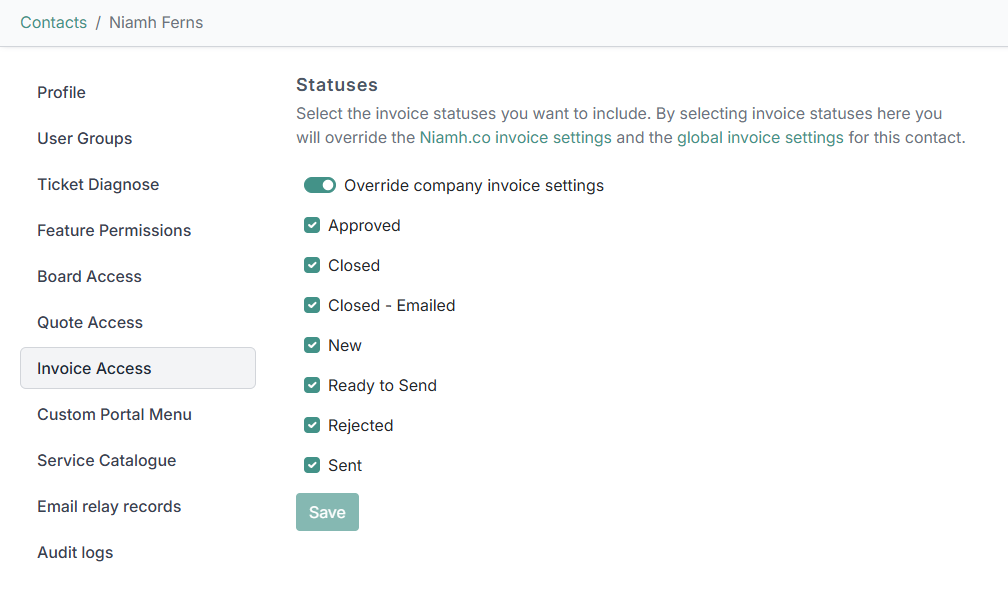
On this page, you can select which invoice statuses you want to appear globally for all contacts under your DeskDirector instance. Any settings in this are overridden by settings for specific companies (under Portal > Companies > "Company Name" > Invoice Access) or contacts (under Portal > Contacts > "Contact Name" > Invoice Access).
Using Invoices
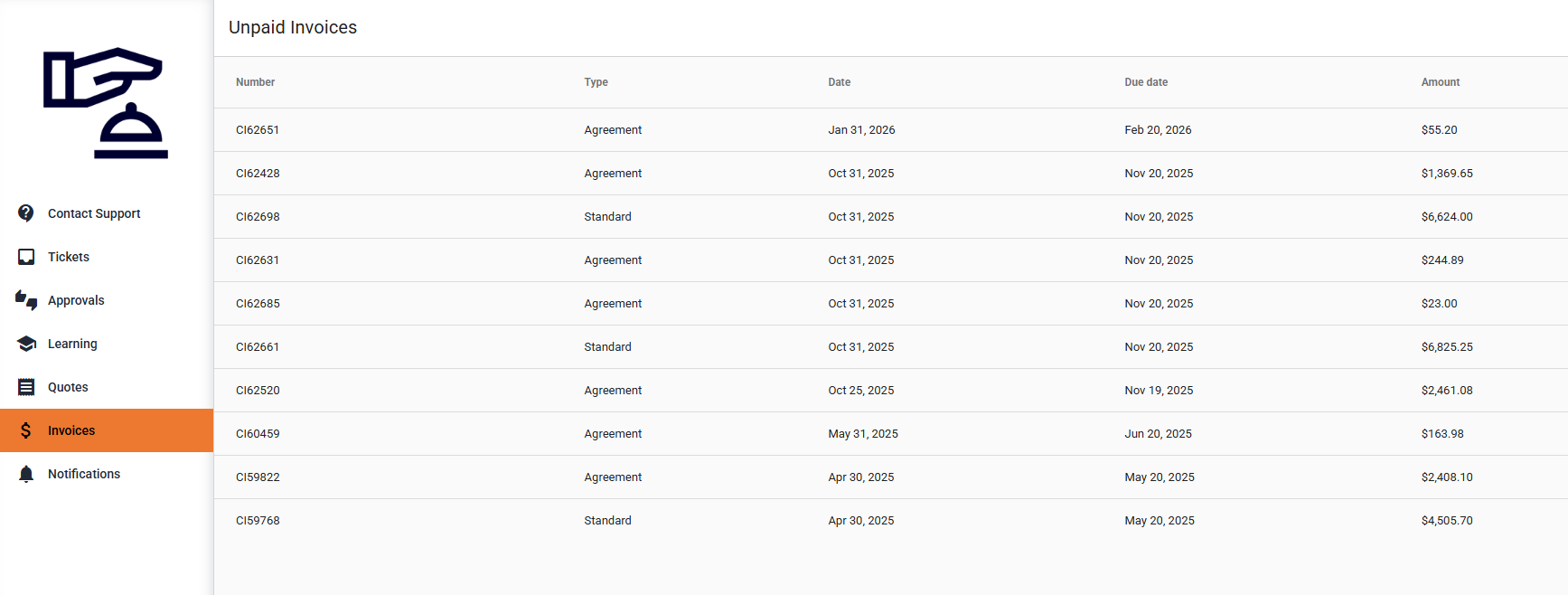
Grant "Invoices" access to a user who needs invoice access (either globally, via a company, or directly at the user level). Invoices will appear as in the screenshot above. Users can see a summary of all the invoices and can then choose to flag invoices to create an activity for the account manager for that client. This will also send a reminder email to the account manager that a user has flagged that invoice.
Users can open up the full invoice from DeskDirector by clicking on the name of the invoice.
Quotes
Configuring Quotes
Similar to invoices, you can access your quotes settings in the Admin Portal under Portal > Global Settings > Quote Access:
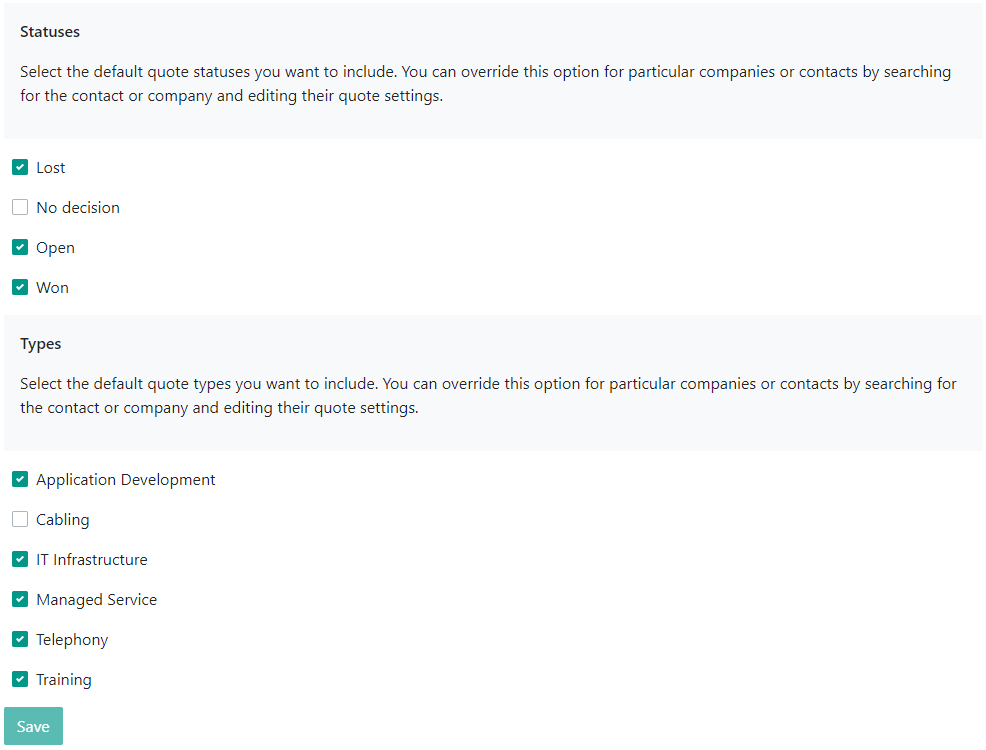
On this page, you can select which quote statuses and types you want to appear globally for all contacts under your DeskDirector instances. Any settings on this are overridden by settings for specific companies (under Portal > Companies > "Company Name" > Quote Access ) or contacts (under Portal > Contacts > "Contact Name" > Quote Access).
Using Quotes
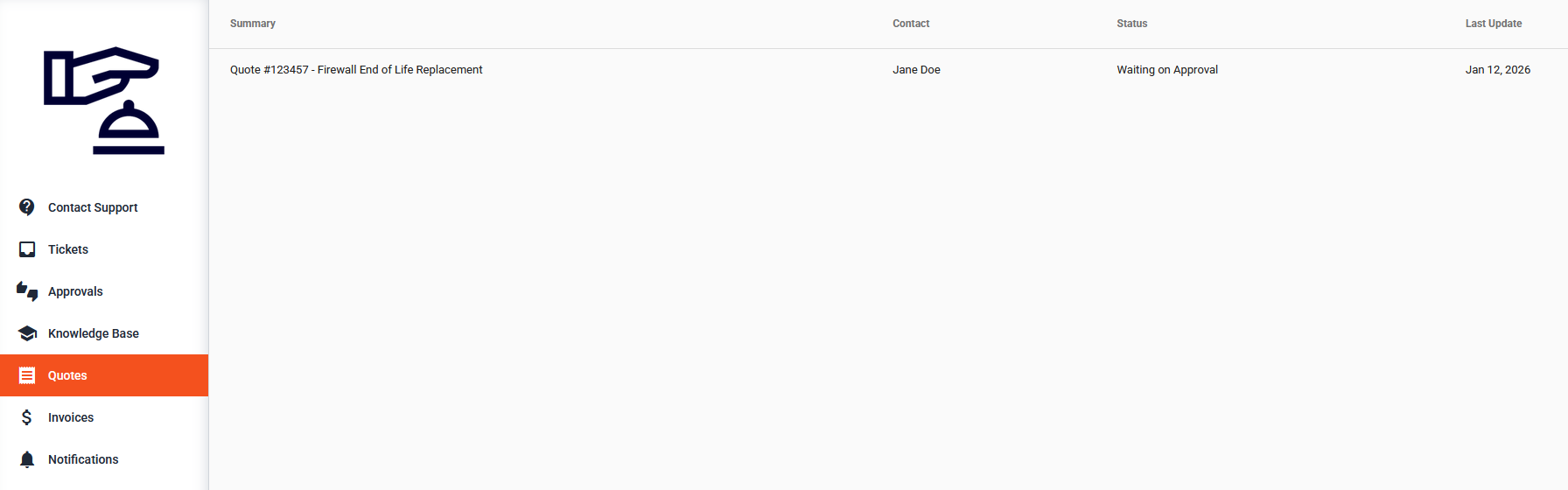
Any companies/contacts that have the Quotes permissions enabled in the Admin Portal will be able to see the Quotes tab in the Client Portal:
- Users with the Flag permission can choose to Flag a quote, which will create an activity for the account manager for that client. This will also send a reminder email to the account manager that a user has flagged that quote.
- Users can see any open or closed quotes. They can see the summary of a quote and view the original quote from within DeskDirector.
ConnectWise Sell Overview
You can find the current most recent documentation for this below.
Showing Quotes in DeskDirector
In DeskDirector, you can show a link to an external quote instead of the built-in quote view by adding a link as an attachment to your opportunity. The link is expected in the following format:
Name (.filetype): View Order Porter.html
Content:
<html>
<head>
  <meta http-equiv="Refresh" content="1; url=YOUR LINK HERE" />
</head>
<body>
  You are being redirected to <a href="YOUR LINK HERE</a>.  If you do not get redirected, please click on the link.
</body>
</html>
Order Porter
If you use ConnectWise Sell's Order Porter solution, DeskDirector will automatically navigate the user to the Order Porter page of a quote when they open the opportunity in DeskDirector.
There are times, however, when ConnectWise Sell Order Porter quotes will not automatically appear when a user clicks on an opportunity in DeskDirector. This is generally because ConnectWise Sell is not adding a "View Order Porter" link to the documents section of the opportunity that DeskDirector relies on.
The following video shows you how to configure ConnectWise Sell Order Porter Integration and also how to troubleshoot any issues with it.
As mentioned above, DeskDirector uses a link added to an Opportunity in ConnectWise to show the corresponding Order Porter link:
- Ensure you have the correct permissions assigned (as per the above video)
- Create a quote as you normally would in Order Porter
- Publish your quote
View Order Porter.html link will not be added to your opportunity. In this case, you will need to add this manually.For further support, please refer to ConnectWise's Order Porter documentation:
