Table of Contents
Permissions & Feature Configuration (ConnectWise/Autotask Partners)
 Updated
by Niamh Ferns
Updated
by Niamh Ferns
Feature Configuration
Defaults
There are instances where a ticket is created, but doesn't fall under any specific area. This is where the default ticket board and source come in handy. Ticket defaults allow you to set the board and source for tickets when they can not be specified in a Service Type. You can easily set these two in the Admin Portal under System > Feature Configuration > Defaults.
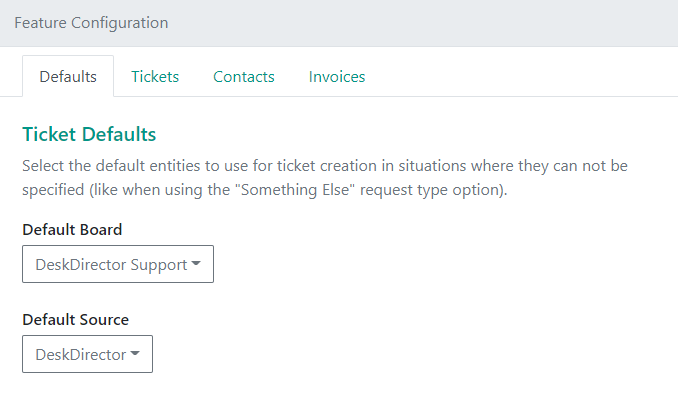
Default Board
Having a default board can be used in the following situations:
- User selects Something Else support option when submitting a ticket
- Tickets created by the Pre-ticket Chat feature
- No Service Types have been set up
- No board is specified inside a specific Service Type
Default Source
The default source setting adds information to the ticket saying where the request came from. As with the default board, this setting acts as a fallback unless the source has been explicitly defined in another location.
Tickets
Client Portal
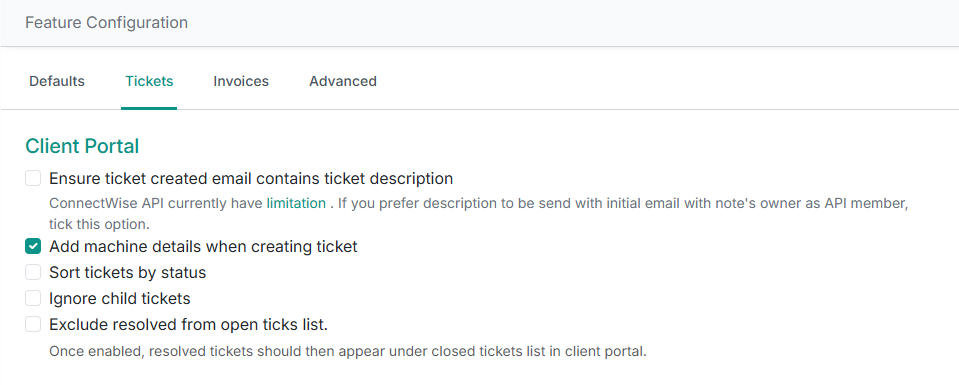
Under this section, you can configure general settings for your Client Portal:
- Whether ticket-created emails should always have a description
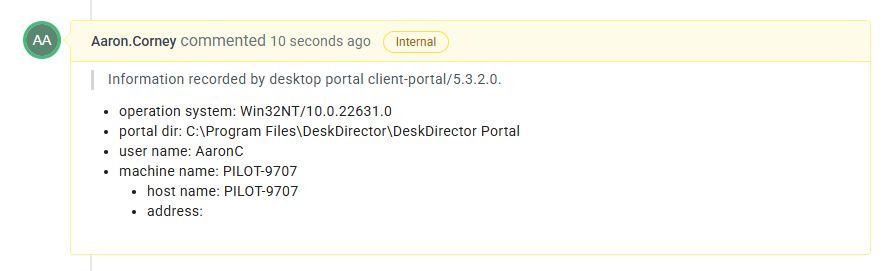
- Add machine details when creating a ticket: With this flag enabled, tickets created using the Desktop Portal will include the user's machine details as an internal note:
- Portal Version
- Operating System
- DeskDirector Installation Directory
- User Name
- Machine Name
- I.P. Address
- Whether to sort tickets by status
- Ignore child tickets: With this flag enabled, tickets that are either merged or bundled into a parent ticket will not display within the client portal.
- Exclude resolved from open ticks list: With this flag enabled, any status where the escalation status is
We have resolved the issue.will display under Closed Tickets, even if theClosed Statusflag is disabled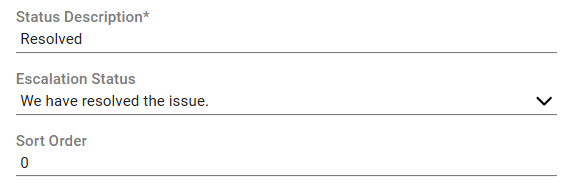
File Storage
Here, you can enable or disable File Storage in DeskDirector for attachments.
Email Behavior
Here, you can configure email-specific behaviour, like whether DeskDirector should avoid aggressive notifications with ConnectWise.
Approvals
Here, you can configure the statuses required for Approvals in DeskDirector.
Actions
DeskDirector allows for automatic status changes for the following actions:
- Tickets closed by a user
- Tickets reopened by a user
- Tickets fast tracked by a user
- Tickets updated by a user
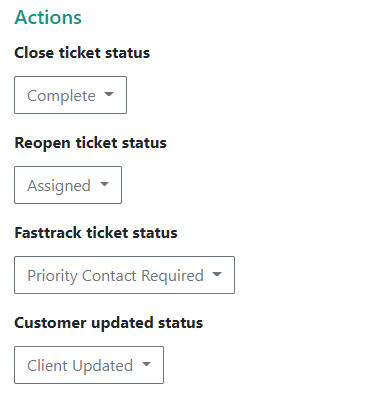
When tickets are updated in this way, they will be moved to the associated status automatically. These events are triggered on tickets within the Client Portal:
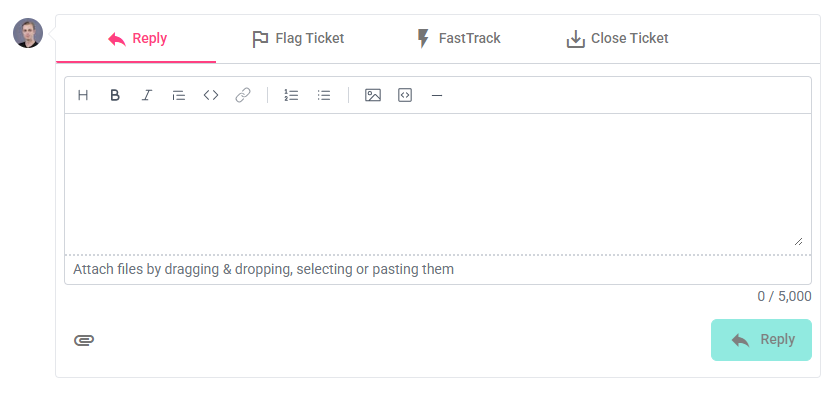
- Ticket Updated: The ticket updated status change is triggered when users update a ticket, either by adding a CC or replying to a ticket. This functionality can be easily configured in the DeskDirector admin portal. Head to
System>Feature Configuration>Tickets. Under the "Actions" area, you'll be able to change this as well as your other statuses.
- Ticket Closed: Customers have the ability to mark their tickets as closed directly from the DeskDirector Portal. Settings for this can be found on the Admin Portal in the following location:
System>Feature Configuration>Tickets Tab>Close ticket status name.
Many companies will use the same closed status for those closed by service agents and by end users. Another approach is to create a secondary closed status in your PSA (e.g. "Closed by Customer"). This allows you to search for which tickets have been previously closed by your customers.
- Ticket Reopened: DeskDirector gives end users the ability to reopen tickets up to 30 days after they have been closed. This means that if you have systems that automatically close tickets, have a ticket closed incorrectly, or an issue comes back after both parties thought it was resolved, end users can reopen their ticket without having to raise a new one.
To reopen a ticket, the client just needs to log in to their Client Portal. Under their closed tickets, the option to "Reopen Ticket" should be at the bottom of the ticket. Any "Reason for Reopening" added will be left as a ticket note, and the ticket will be moved into the reopened status. Clients will only be able to reopen a ticket within 30 days of the closing date
 - Ticket Fast Tracked: DeskDirector gives users the ability to fast track tickets. These tickets will appear under a special status and can trigger events or the Power Automate Connector Trigger.

- Ticket Escalated: DeskDirector gives users the ability to escalate tickets.Note: escalations require you to both have an escalation status correctly configured for a board, and you will need to ensure that all users who need to be able to escalate tickets have been granted the fast-track permission.

VIPs
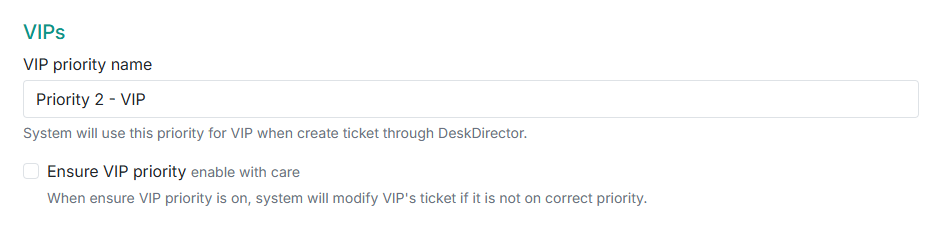
Under the VIP section, you can configure whether to use a dedicated VIP priority for important users (Managers, C-Suites, or Emergency Contacts). Once a VIP status is configured, new tickets created by contacts with VIP permmissions will be set to the VIP priority.
When Ensure VIP Priority is enabled, if a VIP ticket's priority is updated, it will be reverted back to the VIP priority configured.
Permissions
Permissions in DeskDirector follow a system called Cascading Override. That is, your permissions go from the widest scope (Globally Scoped) to the narrowest scope (User Scope), where narrower scopes will always overwrite a wider scope.
If you then set a user under that company to override the company setting and again disable Fast Track, that specific user will have Fast Track disabled regardless of the company-specific settings.
This is important to understand when troubleshooting common issues in DeskDirector for your end users.
Global Settings
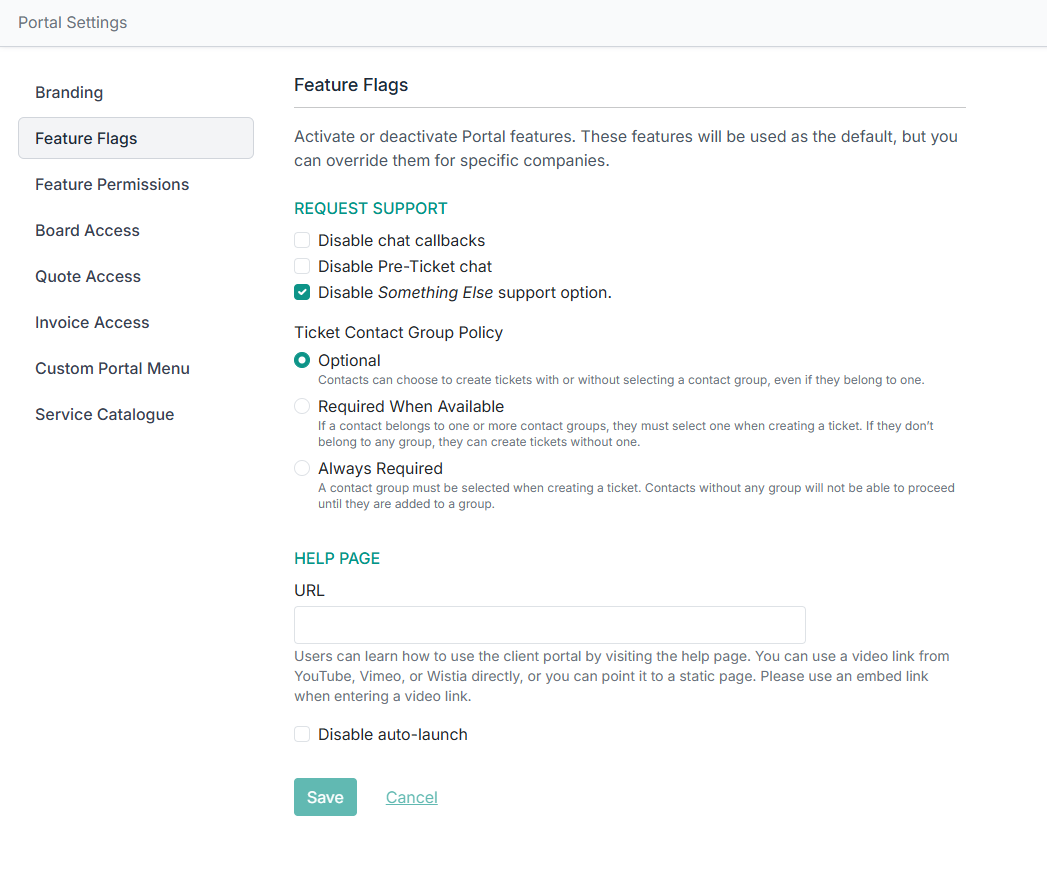
Global settings can be configured under Portal > Global Settings. You will have access here to configure the feature flags, feature permissions, a global portal menu, and a global service group for all contacts and companies in your DeskDirector instance:
You can also set a global baseline for what Boards/Queues, Quotes, and Invoices should be accessible to your Companies, Contacts, and Members/Resources:
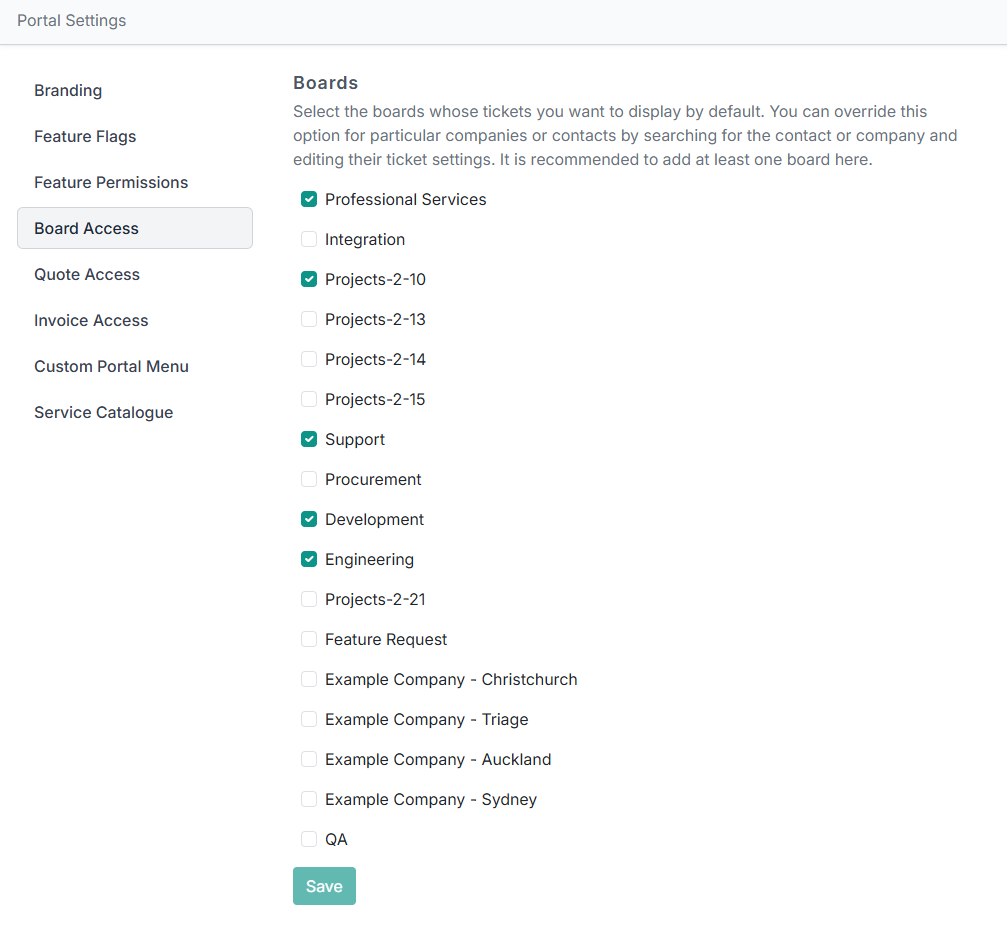
Feature Flags
You can enable or disable access to chat callbacks, pre-ticket chats, or the something else support option at a company level under Portal > Companies > {Company} > Feature Flags:
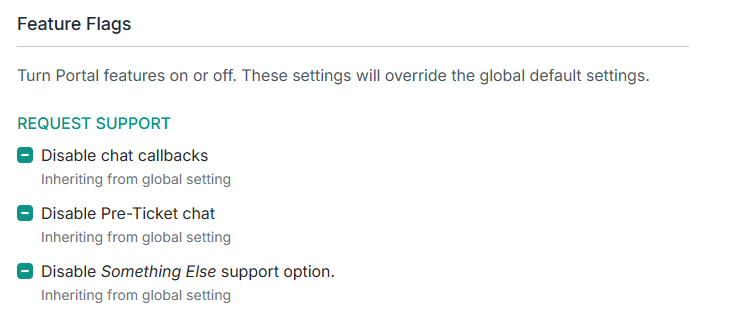
Ticket Contact Group Policy
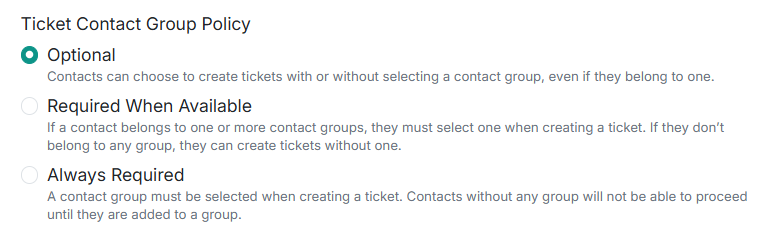
Whether your contacts should only be able to submit tickets through a Contact/User Group:
- Optional: Contacts can choose to create tickets with or without selecting a contact group, even if they belong to one.
- Required When Available: If a contact belongs to one or more contact groups, they must select one when creating a ticket. If they don’t belong to any group, they can create tickets without one.
- Always Required: A contact group must be selected when creating a ticket. Contacts without any group will not be able to proceed until they are added to a group.
Help Page
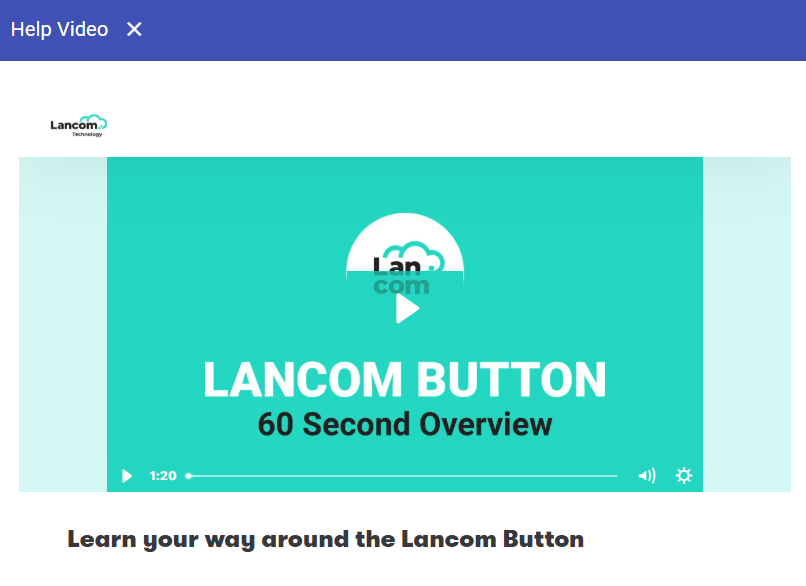
Configuring a Help Page launches content within a window upon logging into the client portal, commonly a video on how to use your support portal:
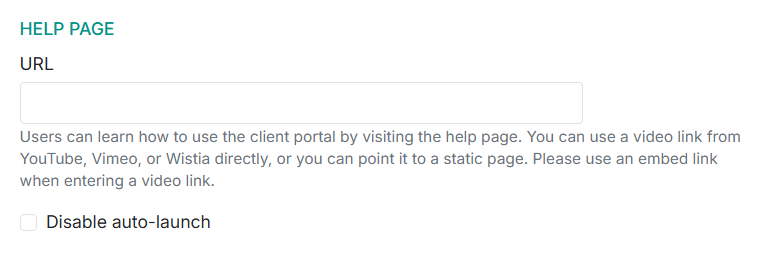
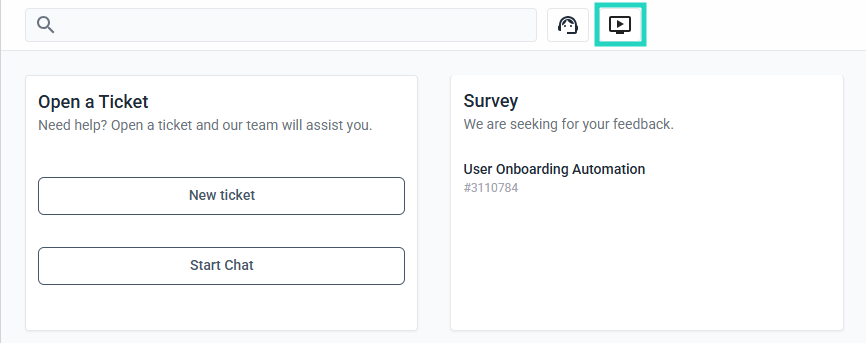
Disable auto-launch will stop this from presenting upon first login, and can be accessed using the following:
Feature Permissions
You can enable or disable access to a variety of portal permissions at a company or contact level under Portal > Companies > {Company} > Feature Permissions:
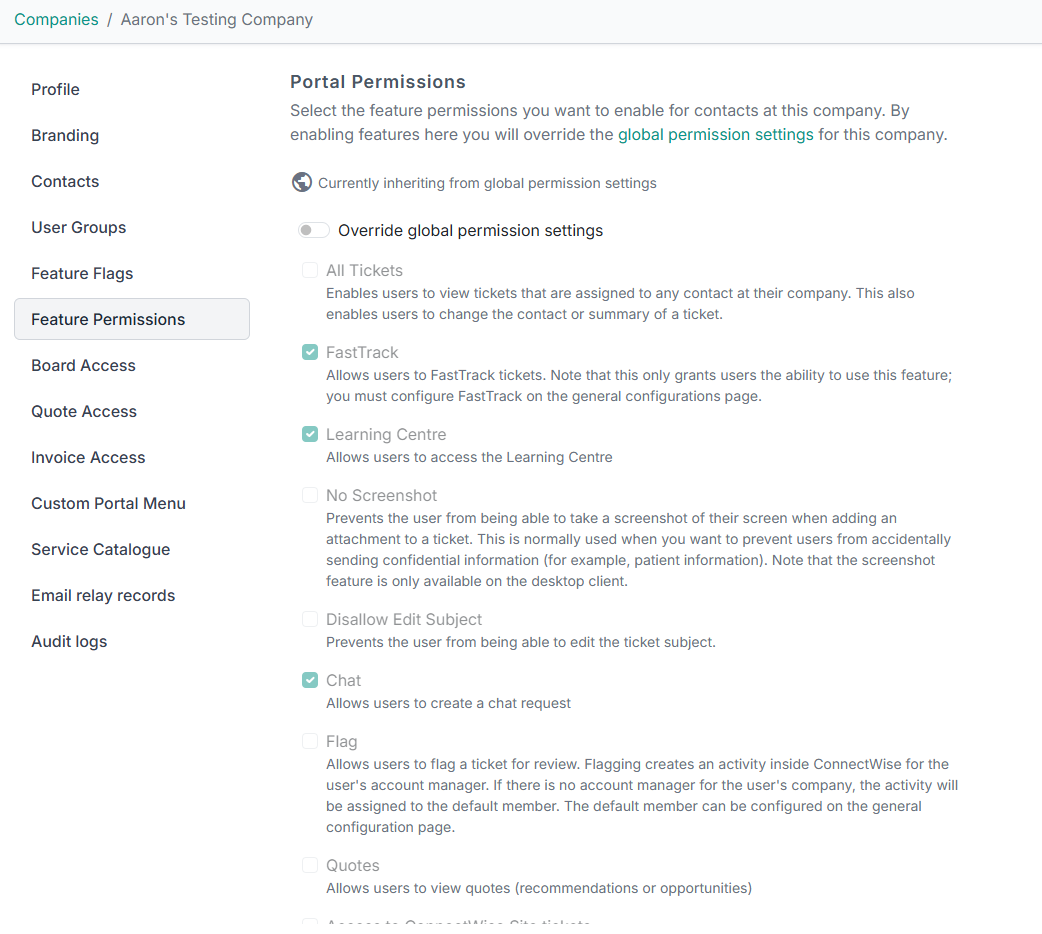
You can configure:
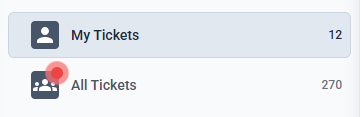
- All Tickets: With this flag enabled, a contact will have access to all tickets under their company from a dedicated section of their client portal.
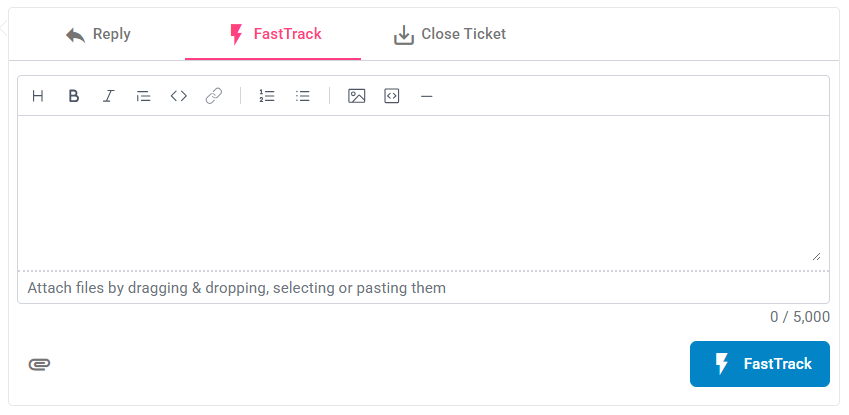
- FastTrack: With this flag enabled, the Company or Contact gains access to FastTrack tickets within the client portal. This setting also determines whether companies and contacts can escalate tickets on boards with an escalation status enabled.
- Learning Center: Whether the Company or Contact should have access to the Learning Center.
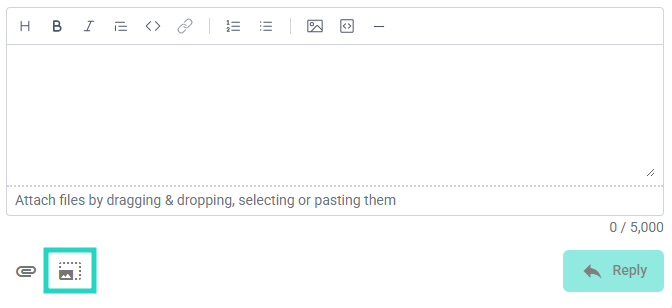
- No Screenshot: With this flag enabled, the Company or Contact cannot use the Take a Screenshot option within the installed Desktop Client Portal
- Disallow Edit Subject: With this flag enabled, the Company or Contact cannot edit the subject of their ticket from the Client Portal:

- Chat: Whether the Company or Contact should have the ability to use Chat.
- Flag: Whether the Company or Contact should be able to flag tickets, flagging creates an activity inside ConnectWise for the user's account manager.
- Quotes: Whether the Company or Contact should have access to Quotes.
- VIP: With this flag enabled, the VIP Priority will be used when the contact submits a ticket through DeskDirector.
- Invoices: Whether the contact will have access to Invoices.
- All Quotes: Whether a contact can view all quotes for a company.
- Access to ConnectWise Site Tickets: Whether the company or contact will have access to all tickets for a specific Site. (Note: this option conflicts with the All Tickets permission.)
Board Access
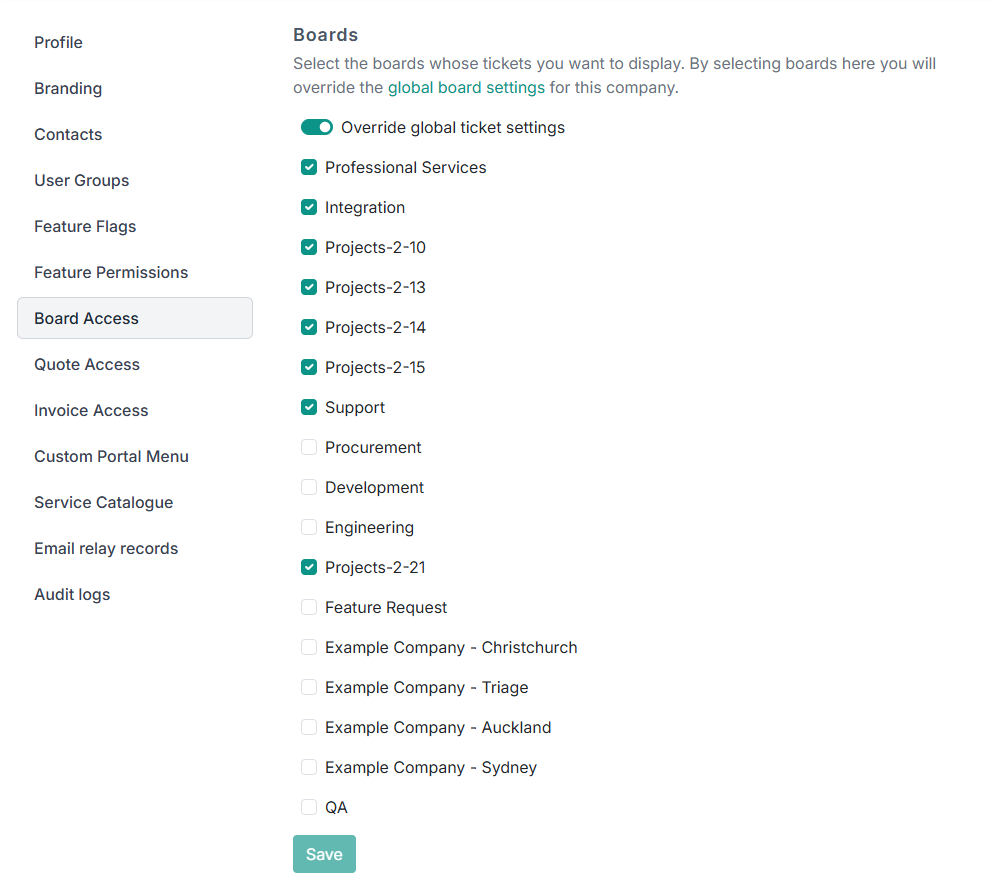
Under this tab, you can configure which boards a company or contact will have access to:
Quote Access
Here you can configure user access for quotes. For more, please see our integrations documentation.
Invoice Access
Here you can configure user access for invoices. For more, please see our integrations documentation.
Custom Portal Menu
Here, you can configure a custom menu to be used for a company or specific contact.
Service Catalogue
Here, you can configure a Service Group to be used for a company or a specific contact.
Member/Resource Permissions
Board Access
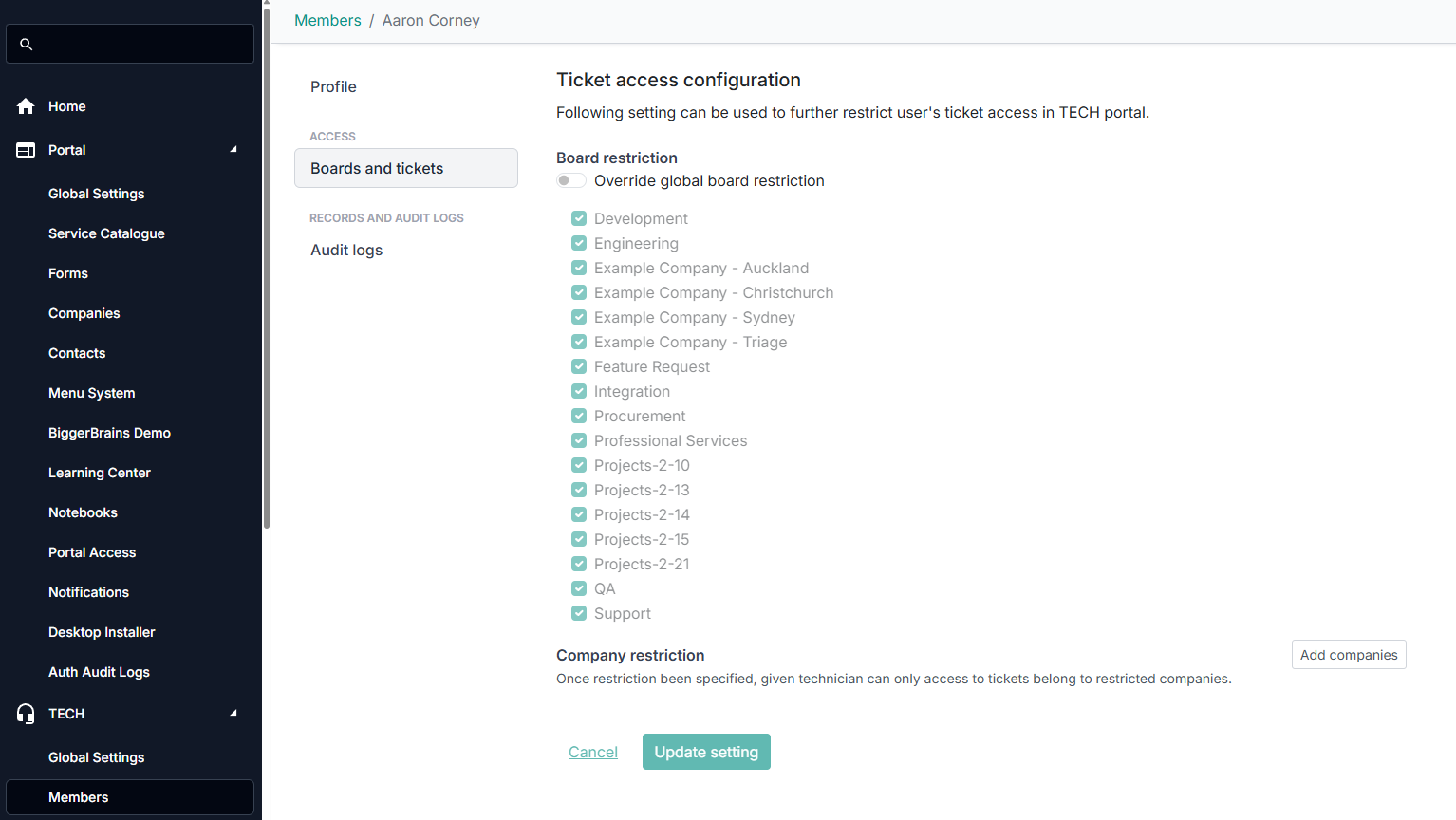
Under a Member/Resource's Boards and tickets tab, you can override the global settings for board access. You can also add restrictions for what company a Member/Resource's is allowed to work on.
Roles
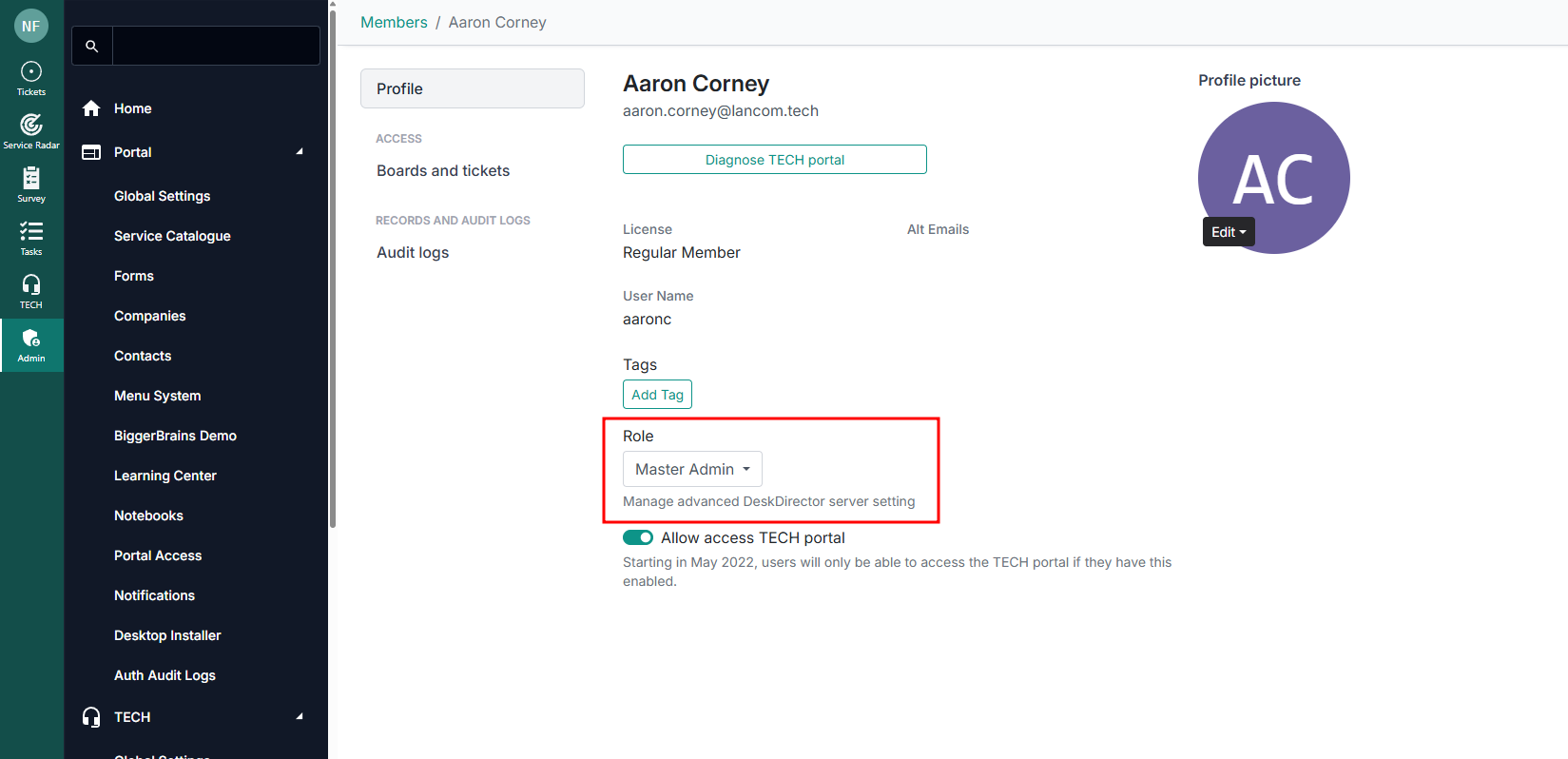
You can edit a Member/Resource's Role under their Profile tab. Simply click on the Role dropdown and select the role you wish them to have.
Role Differences
Access to most features and settings in DeskDirector is controlled via member/resource roles and permissions set for them.
Streamline | Regular Member | Advanced User | Admin | Master Admin | ||
Ticket Surveys | View | X | ✓ | ✓ | ✓ | ✓ |
Update | X | X | X | ✓ | ✓ | |
View own results | X | ✓ | ✓ | ✓ | ✓ | |
View all results | X | X | X | ✓ | ✓ | |
Custom Surveys | View | X | ✓ | ✓ | ✓ | ✓ |
Update | X | X | X | ✓ | ✓ | |
View results | X | X | X | ✓ | ✓ | |
Broadcasts | Create | X | X | ✓ | ✓ | ✓ |
Service Radar | View analytics | ✓(1) | ✓ | ✓ | ✓ | ✓ |
Admin basic settings | Home | X | X | X | ✓ | ✓ |
Portal | X | X | X | ✓ | ✓ | |
Analytics | X | X | X | ✓ | ✓ | |
Releases | X | X | X | ✓ | ✓ | |
Admin Advanced Settings | Tech | X | X | X | X | ✓ |
System | X | X | X | X | ✓ | |
X | X | X | X | ✓ | ||
Integration | X | X | X | X | ✓ | |
Advanced | X | X | X | X | ✓ | |
Account | X | X | X | X | ✓ | |
Companies | Create | X | X | X | X | ✓ |
Delete | X | X | X | X | ✓ | |
Get | X | X | X | ✓ | ✓ | |
Update | X | X | X | ✓ | ✓ | |
Contacts | Create | X | X | X | ✓ | ✓ |
Update | X | X | X | ✓ | ✓ | |
Portal Settings | Get global settings | X | X | X | ✓ | ✓ |
Update global settings | X | X | X | ✓(2) | ✓ |
