Table of Contents
Legacy Filtering System
 Updated
by Niamh Ferns
Updated
by Niamh Ferns
Overview
The Legacy Filtering system is historically how DeskDirector has assigned access to service types for companies and contacts. This system is now deprecated, and we typically do not provide advice on how to set it up as it has been deprecated and is slated for removal.
We are, of course, happy to explain how it works, though, and will provide support in moving your instance over to using Service Groups!
How Does it Work?
Legacy filtering relies on two concepts:
- Allow Access: This means that a service type will be available to all of your companies and contacts unless you explicitly disallow them in the exclusions list. Because of this, these are typically used for default service catalogue entries where all of your clients need access except for a few that may not require access or who may have service types that are custom to their needs.
For example, in the picture below, the "User Onboarding" service type will be available to all companies except for DeskDirector: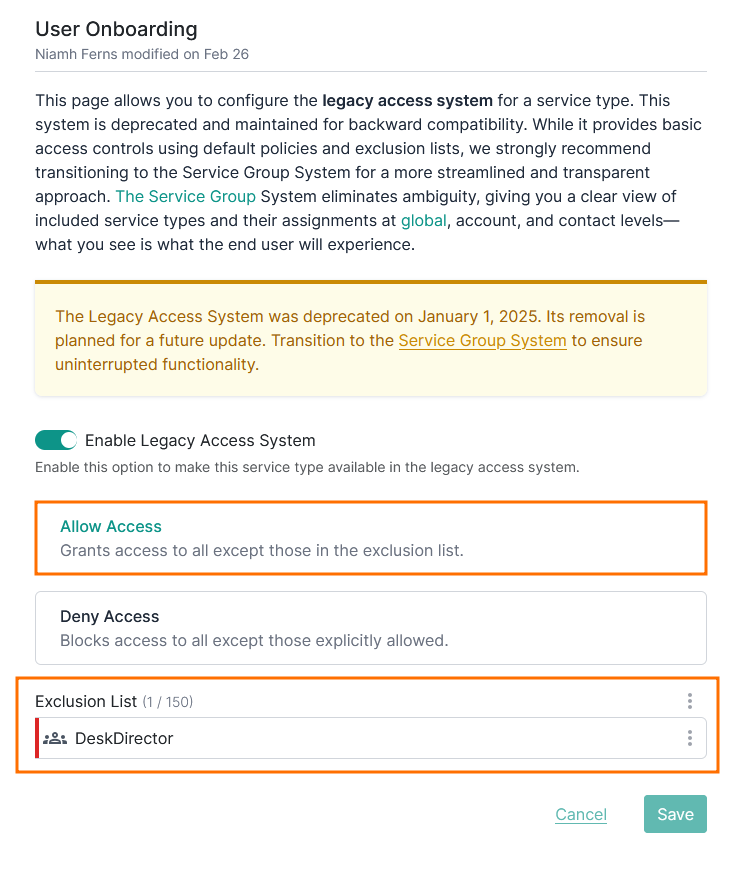 You can exclude specific contacts from access as well!
 - Deny Access: This means that a service type will not be available to anyone unless you explicitly grant them access in the exclusions list. Because of this, these are typically used for custom service type entries or service types that should only be available to certain users.
For example, in the picture below, the "User Offboarding" service type will only be available to DeskDirector, and no other companies will have access: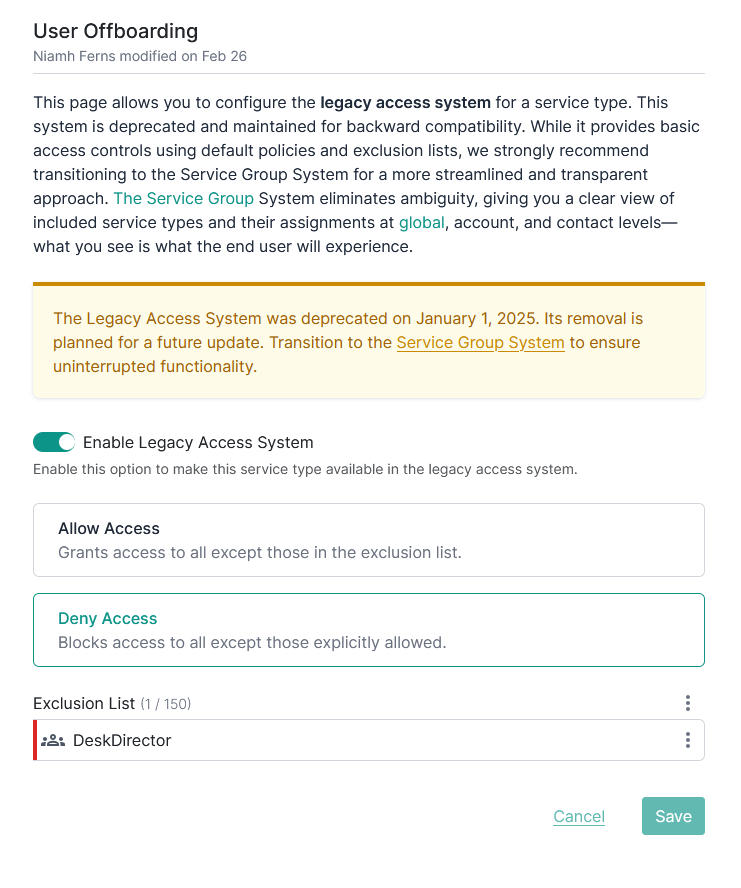 You can explicitly include specific contacts as well!
Migrating to Service Groups
Service Groups provide a cleaner, more intuitive way of assigning access to Service Types. You can read more about them here.
In short, a service group is a collection of service types. Companies, contacts, and contact/user groups can then all be assigned specific service groups to define the list of service types they have access to.
How to Migrate
Typically, your migration will consist of a few steps:
Discovery
You will want to find a list of service types that can be used for a default service group that will apply to all companies, then go company by company for those that need a custom service group. If you have a small number of companies and contacts, this can be done manually with little effort using the filters in the service type list: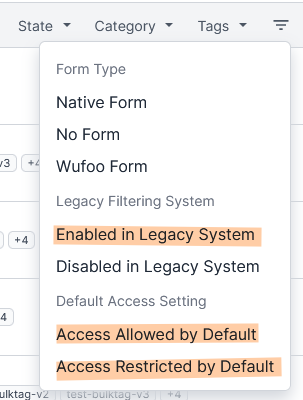 If a company is explicitly allowed access to a service type that is denied by default, they will almost always need a custom service group that includes the type not present in the default group. Similarly, if they are excluded from a type that is allowed by default, they will need a custom group that doesn't include this service type.If you have many companies and contacts, or it is unfeasible to do this manually, we recommend exploring the DeskDirector API to export a list of your service types.
In particular, the two endpoints that will provide you the needed data are:POST/api/v2/admin/request_types/find
Request{
"skip": 0,
"take": 1000
}
Response (listing only relevant fields):{
"results": [
{
"entityId": 0,
...
"enabled": true,
...
}
],
"totalResults": 0,
"request": {
"take": 0,
"skip": 0,
"form": {
"entityId": 0,
"name": "string"
},
"taskTemplate": {
"entityId": "string",
"name": "string"
}
}
}GET/api/v2/admin/request_types/{id}
Response (listing only relevant fields):{
"general": {
"entityId": 0,
"enabled": true,
...
},
"ticket": {...},
"filter": {
"entityId": 0,
"name": "string",
"rootFlag": true,
"inverseFlagTargets": [
{
"entityId": 0,
"name": "string",
"type": "string",
"parent": {
"entityId": 0,
"type": "string",
"name": "string"
},
"inverseFlagTargets": [
"string"
]
}
]
},
"lastModifiedAt": "2026-02-25T22:37:08.372Z"
}Parsing Service Type Data:filter.rootFlag: if true, the service type is set to allow by default for the legacy access system, and if false, it is set to deny access.filter.inverseFlagTargets: an array of entities containing the companies and contacts that have been added as exceptions, so they are allowed/denied access based on therootFlag.general.enabled: if this flag is enabled, the service type is currently using the legacy filtering system.
You can safely assume that a service type can be ignored if either:
1. Thegeneral.enabledflag is set to false
2. Thefilter.rootFlagis set to false AND thefilter.inverseFlagTargetsarray is empty.
Service Catalogue Creation
You'll need to go through and create all of your service groups. Don't assign them just yet, though. We recommend you follow a common naming scheme for these and tag them as needed. A common way of doing this isCompany Name - Catalogue Name - Specific Info. For exampleDeskDirector Ltd - Managed Services - IT Department.
Alternatively, you may wish to make use of the tagging system: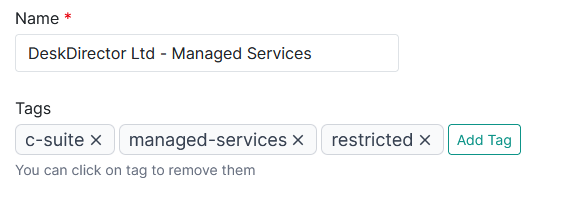
Service Catalogue Assignment
We recommend following a staged rollout in inverse order of the cascading override system. This means that you will assign service groups to contacts first, then to contact/user groups, then to companies. This ensures that any restricted types are only available to users who should see them, you have time to iron out any issues with your rollout, and that contacts with access to restricted types don't lose those.Service Groups will always overwrite legacy access. This means that if you have a contact that has been explicitly granted access through the legacy system and a service group is assigned at the company or global level, they will lose access to the service types granted to them through the legacy system.Default Catalogue Assignment
Once you've confirmed that everything is working as expected for your companies with custom service groups, you can set the default service group. This will completely disable any legacy access granted in your instance. Please do not set this service group until you are completely happy that the legacy access system is no longer needed for any access in your instance.Uncheck Legacy Access on All Service Types
This isn't mandatory, but as a cleanup step, we recommend you go through the remaining service types in your system and disable the Legacy Access checkbox. This will ensure that staff don't have any confusion in maintaining access moving forward.
