Getting Started with DeskDirector
DeskDirector Portals
Browser Support
What is the DeskDirector Admin Portal?
What is the DeskDirector TECH Portal?
What is the DeskDirector Client Portal?
Desktop Portal
Managing Your Account
Pricing & Subscription Plans
Deskdirector - Sign up walk through
Managing your DeskDirector Subscription
Admin Essentials
Release Notes
Permissions & Feature Configuration (ConnectWise/Autotask Partners)
Automatic Contact Creation
The Developer Corner
DeskDirector Features Overview
Logging in to DeskDirector
Desktop Portal Version Differences
Managing Tickets with DeskDirector
User Profiles & Profile Pictures
Office Hours
How Searching Works
Embedding Help Page Media
Get started with the DeskDirector Power Automate Connector
Featured Solution: Teams Ticket Discussion
Features
Portal Customization
Service Catalogue
Forms
Communication
Actionable Messages for Emails
Real-Time Chats
Notifications
Email Notifications
Email Template Engine
Surveys
Broadcasts
Generative AI
Ticket Summary for TECH Portal
DeskDirector with Generative AI
Setting up AI Service Providers
AI Assistants in DeskDirector
Custom Tools for AI Assistants
Knowledge Bases for AI Assistants
Set up Microsoft Foundry Agent Service with DeskDirector Portals
Advanced
Login & Authentication
Contact Groups
Accounts and Companies
Contacts
Approvals
Task Lists
The Learning Center
Tags
Custom Domains
File Storage
Portal Deep Linking
Service Dashboard
Auditing and Analytics
Integrations
ConnectWise
ConnectWise Custom Menu Item for DeskDirector Tech Portal
ConnectWise
ConnectWise Quotes & Invoices
ConnectBooster
ConnectWise - Avoid Aggressive Notifications
AutoTask
Switching or Merging PSAs
QuoteWerks
Wise-Pay
TimeZest
BiggerBrains
OneNote Notebooks
Integrations - Frequently Asked Questions
IT Glue
Microsoft Teams App
Featured Solution: Ticket Briefing
Introducing the DeskDirector for Microsoft Team App
Installing the Microsoft Teams App (Client Mode)
Installing the Microsoft Teams App (TECH Mode)
Setting up Tags for Teams Discussions (TECH Portal)
Branding the DeskDirector Teams App
DeskDirector Teams App Notifications
User Groups Integration with Microsoft Teams
Setting up Content Security Policy (CSP)
Advanced topic: Setting up Tech & Client Mode in the same tenancy
Integrating Microsoft Teams with DeskDirector Tech Portal
Smart Alerts for TECH Users
Microsoft Power Automate
Actions
Solutions
Power Automate Administration
Power Automate Connector - Setting up your first flow
DeskDirector Power Platform Connector Reference
Troubleshooting
Troubleshooting via Web Developer Tools
Diagnose Entities Tool
Troubleshooting DeskDirector Connection Issues
Permissions & Access - Common Issues
Tickets & Chats - Common Issues
ConnectWise Audit Trail - Exporting API Logs
Contact DeskDirector Support
Desktop Portal - Common Issues
Contact Impersonation
DeskDirector Desktop App - Installation Issues
Login & Authentication - Common Issues
Approvals - Common Issues
Email & Email Delivery - Common Issues
PSA Entity Syncing - Common Issues
PSA Integration - Common Issues
ConnectWise Integration - Common Issues
Autotask Integration - Common Issues
Microsoft Teams App - Common Issues
Security
Glossary
Archived
- All Categories
- Getting Started with DeskDirector
- Managing Tickets with DeskDirector
Managing Tickets with DeskDirector
 Updated
by Niamh Ferns
Updated
by Niamh Ferns
Overview
To see how to manage tickets via the legacy approach, see What is the DeskDirector TECH Portal?
Upcoming Features
With our current focus on the DeskDirector Tokity backend, we're also building out a completely new and improved ticket management UI. This new ticket management UI will give you a new ticket list, where you can cleanly and effectively filter for tickets, and a ticket UI where you can work on your tickets in a more user-friendly manner. Below, we provide an overview of the new ticket UI
Ticket List
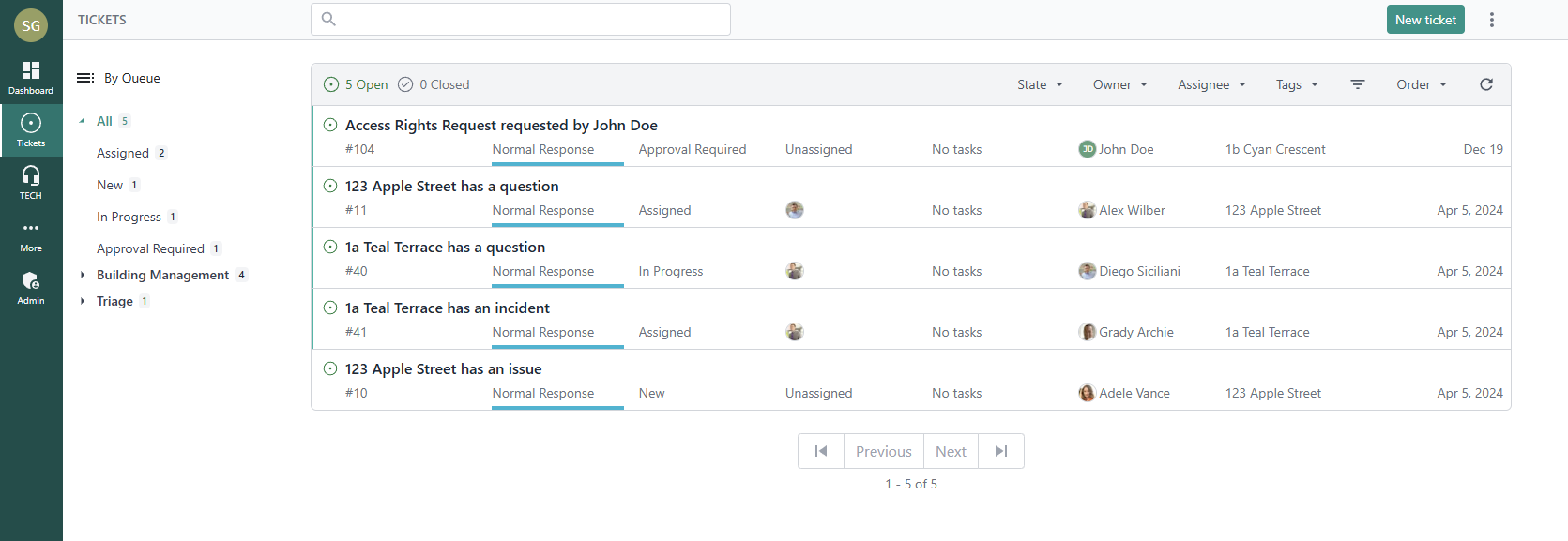
With the new ticket list, you can create tickets, filter for specific tickets, and browse for tickets that need your attention.
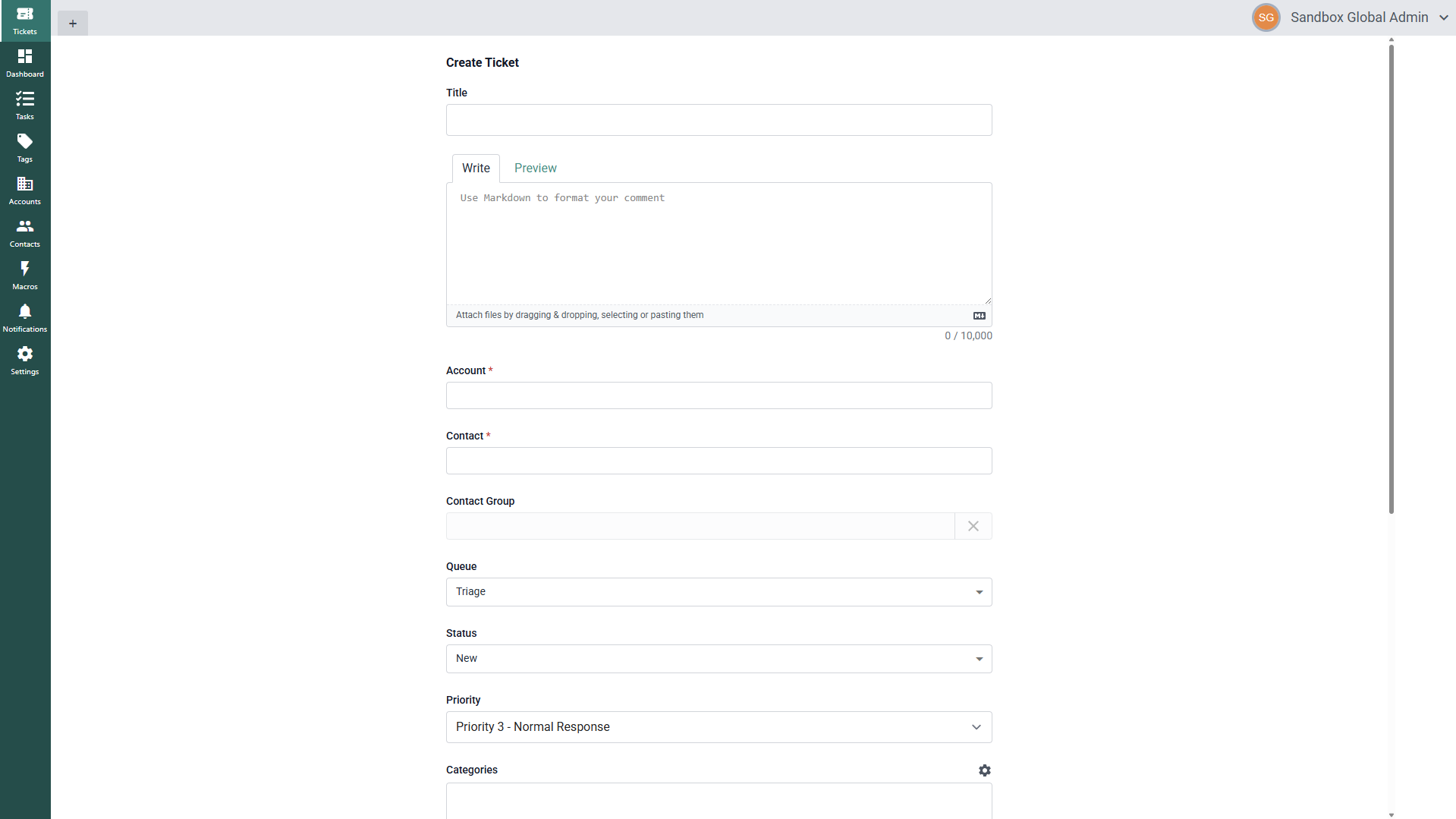
To create a new ticket, select New ticket and then fill in ticket details as you normally would:
Filtering for Tickets
Below, you can see all the interactive elements for the new ticket list UI:
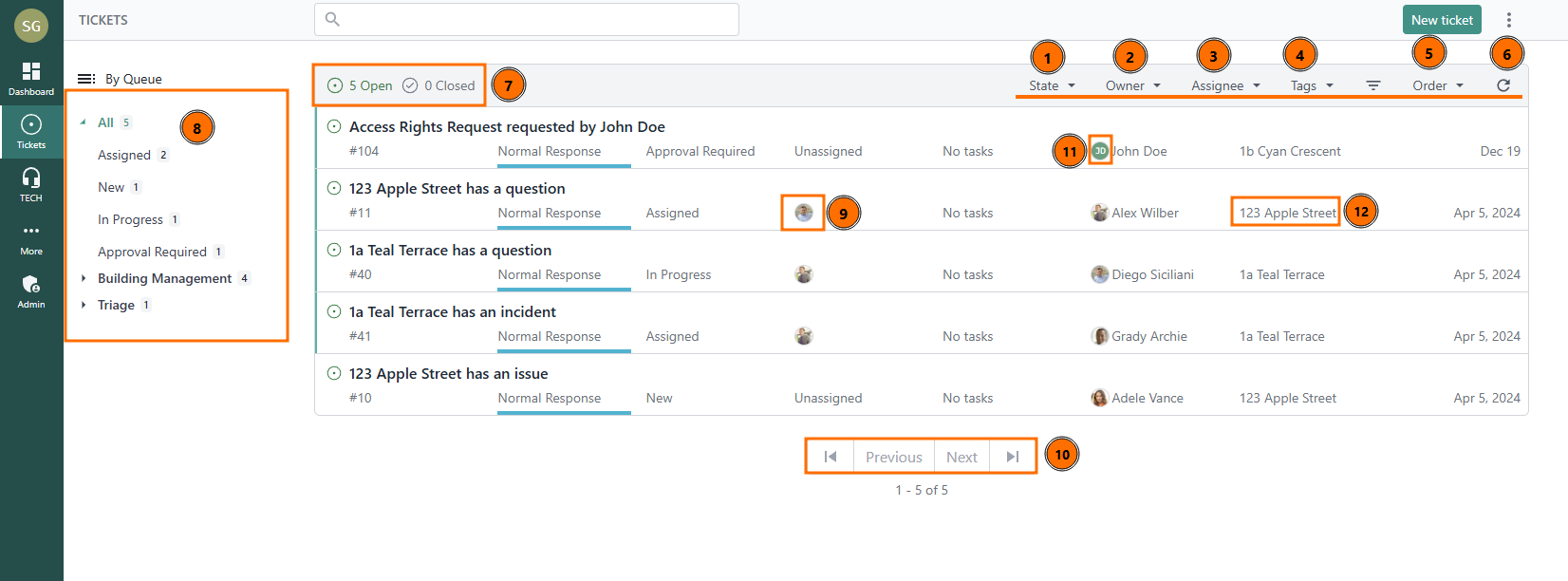
There is a set of filters that you can use for:
- Ticket State
- Ticket Owner (Contact)
- Ticket Assignee (Agent)
- Ticket Tags
- Decide which filter to order by and whether they're ascending or descending
- Refresh your ticket list for updates
- Select whether you're looking for open or closed tickets
- Select your primary filter (by default, this will filter by Queue):
Within the main ticket list portion of the screen, you can:
- Quick filter for the ticket assignee
- Switch between pages
- Quick filter for the ticket contact
- Quick filter for the ticket company
Multiple Filters
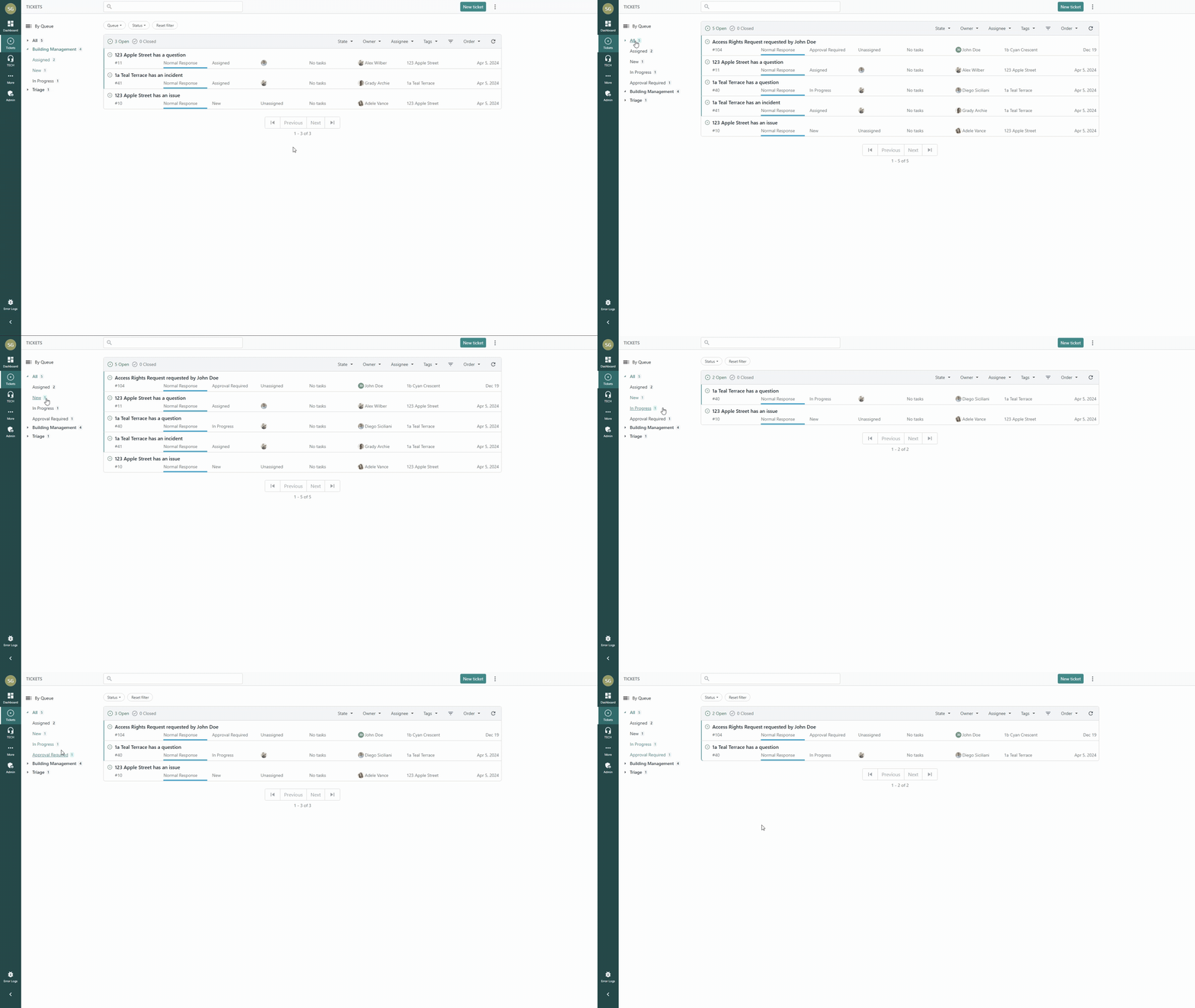
For agents that need to function across multiple queues, contacts, and more, we've added the ability to select multiple primary filters! For most users, this will be useful in filtering by multiple queues.
To get started, select a queue that you'd like to start with and then hold control and click on the other queues/statuses you want to filter for:
Working on Tickets
To start working on a ticket, select the ticket you're interested in and you will be presented with the new ticket interface:
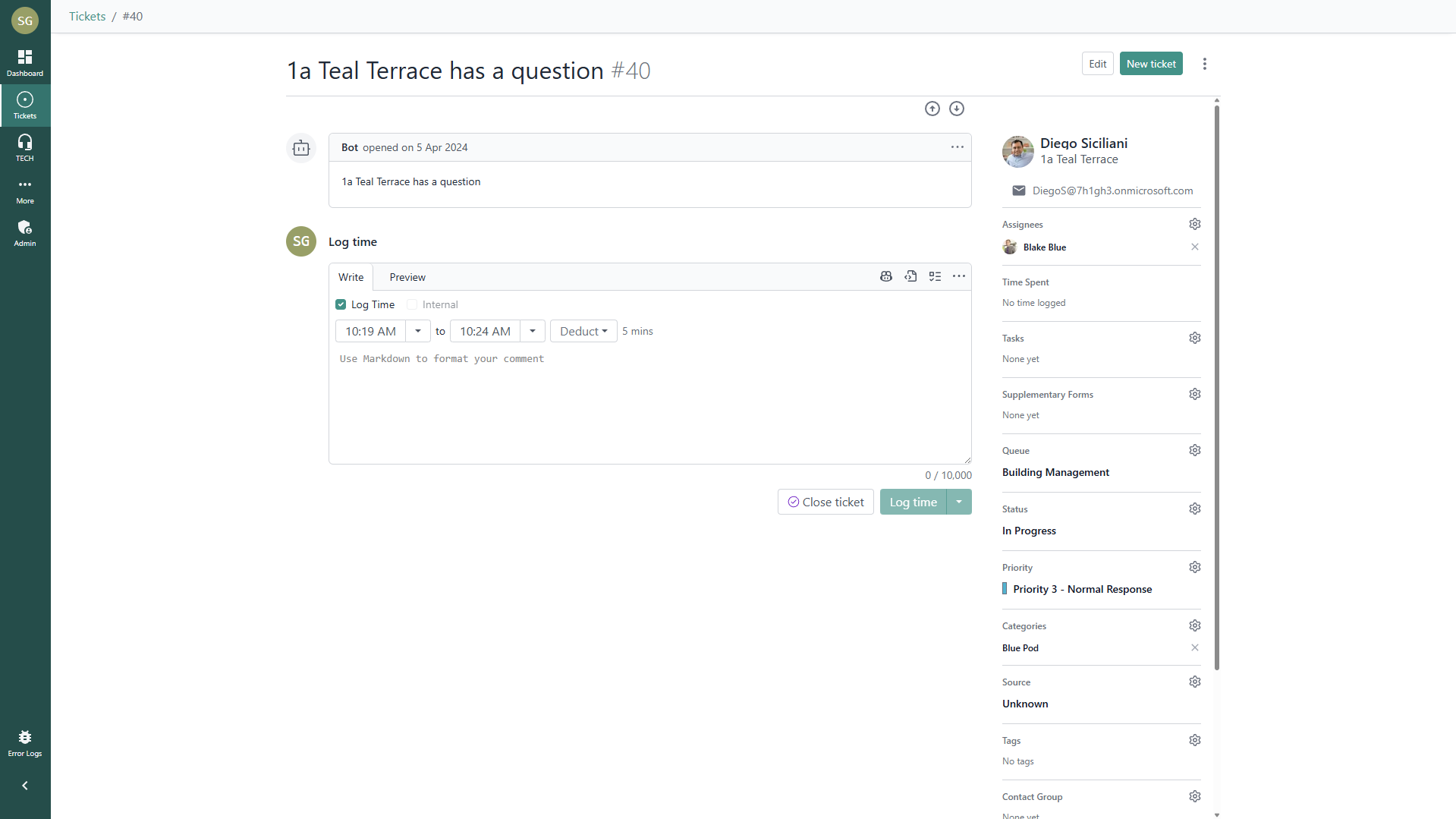
Here, you can:
- Add time and notes
- Update the ticket's details
- Assign members and contacts
- Perform ticket actions like closing, reopening, and requesting further information
Adding Time & Notes
To add time to a ticket, make sure your ticket is not marked as an internal note, then add your details. You then select the Log Time checkbox and add your start time, end time, and any time that should be deducted.
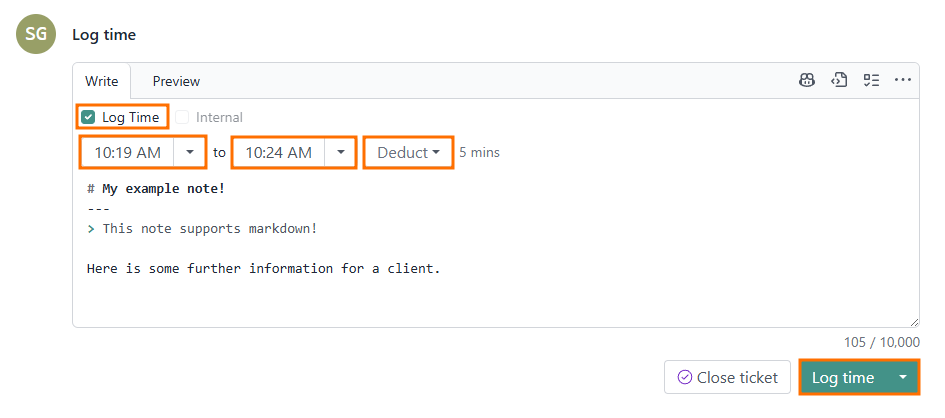
If needed, you can preview your note and then submit.
If you don't need to log time, you can uncheck the Log Time checkbox and optionally select the Internal note checkbox if your entry contains sensitive information.
If this is the final note on a ticket, you can select the Close ticket button instead to add your note and close the ticket immediately.
Updating Ticket Details
On the right-hand side, you can further update the ticket as needed:
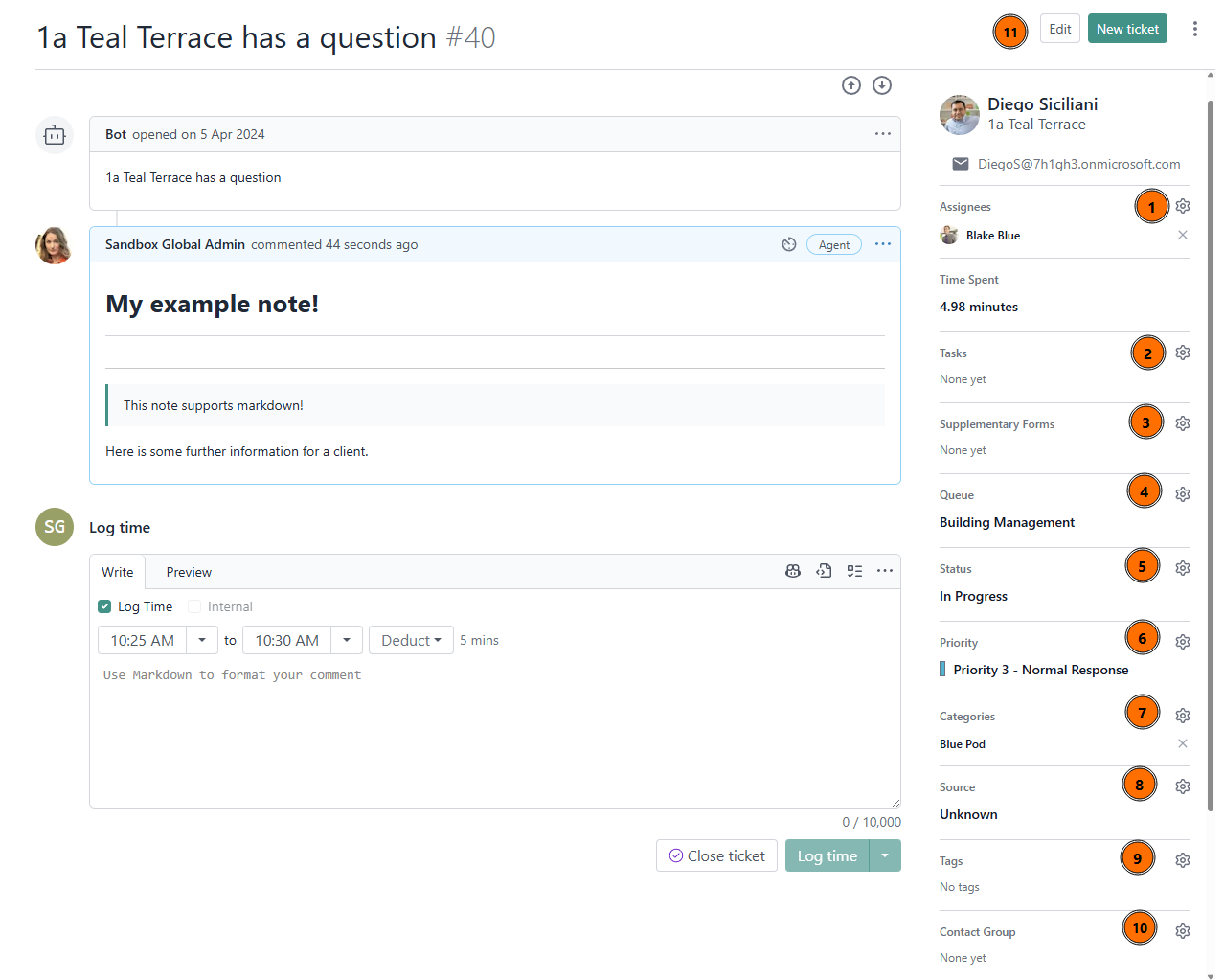
- Assignees: assign agents to work on a ticket
- Tasks: add tasks to your ticket
- Supplementary Forms: submit additional, inline forms for your client to respond to
- Queue: update the queue/board
- Status: update the status
- Priority: update the priority
- Categories: update the ticket category
- Source: update the ticket's source
- Contact Group: assign the ticket to a contact group
- Edit the ticket title
Additionally, you can select the contact to:
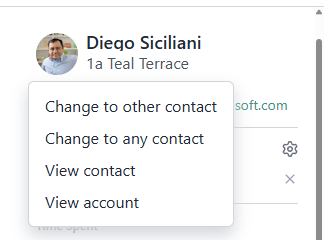
- Change to another to other contact for the account
- Change to any contact in your DeskDirector instance
- View the contact details
- View the account details
If you scroll down, you can add additional contacts to a ticket as well: